December 2025
Editor’s note: In this article, College Assistant Director of Information Technology (IT) Operations Johanna Boutcher and our fellow FA member Christina Johnston-Eustace share what’s new in technology at SCCC along with useful resources for you and your students. As 2025 comes to an end, we are reflecting on how many things have changed in the world of technology in the past five years. After the pandemic pushed us into spaces where we came to rely more heavily on technology, we are now faced with the need to adapt to the fast-growing influence of artificial intelligence (AI). In the Information Technology Services (ITS) department, we know that technology changes can feel unsettling, but they often bring about new opportunities to create better solutions for our college community, faculty, staff and students alike. Here are two big positive changes we want to highlight:
Please know that we really do listen when you contact us with issues and concerns and try our best to address them. Now, to help FA members stay current with some of the latest in the world of technology at SCCC, below we share some technology changes we have experienced during the past few years. Tech help Our IT help desk support for employees and students has been unified under a single phone number 631-451-HELP (4357), and what were once called the Academic Computing Centers are now called the Student Tech Centers to better reflect our main purpose of serving students.
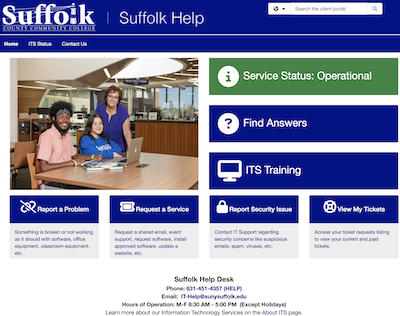
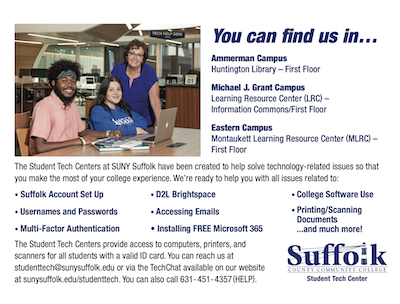
With professional staff available to assist, the Student Tech Centers are located within the libraries at each of the three campuses and provide access to computers, printers and scanners for all students. The PCs and Mac computers in the centers provide Internet access, necessary curriculum software and the technological means to accommodate and complete all class-related assignments. Additionally, these centers provide first-level support to faculty teaching in classrooms. Hours of operation, contact information, access to the online TechChat and more can be found at sunysuffolk.edu/studenttech. In addition, we have upgraded our Suffolk Help site, providing a more intuitive interface for a centralized site to report issues, request services, find information, find or request training and check status of submitted tickets and access them to add comments if needed. New AI policy and tools With AI use increasing among employees and students, to guide the college community on using the new AI-powered tools that are available, the college has adopted an artificial intelligence (AI) usage policy. This policy aims to help protect academic integrity, secure data privacy and reduce bias or misuse while encouraging innovation and exploration of AI tools in research and teaching. In some cases, AI components are automatically released without ITS’s knowledge and the college needs to understand what is allowed or not here.
Microsoft Teams for lecturing As the college strives to enhance our teaching and collaboration tools, we are transitioning to Microsoft Teams. Microsoft Teams provides seamless integration with the Office 365 suite, offers robust collaboration tools, ensures that our communications and data are secure and meet regulatory requirements and is a more cost-effective solution compared to maintaining separate licenses for Zoom. Many of the college’s offices, departments and committees have already transitioned to using Teams. However, teaching faculty, who have largely kept using Zoom, will need to transition to Teams for virtual lectures. Switching from Zoom to Teams might feel like a big change, but we’ve got you covered with training and tips. Over 300 Zoom licenses have already been revoked from faculty that have not signed into their Zoom account since 2024, and no new Zoom licenses have been requested this year. This is seen as a sign faculty are making the transition. On December 26, the remaining faculty Zoom licenses will be stripped. While you will still be able to access Zoom with your Suffolk account, you not be able to host a Zoom session longer than 40 minutes or use any of the licensed features. ITS is hosting a Teams for Virtual Instruction workshop scheduled for Friday, December 19th at 9am via Teams. The workshop’s Join Link can be found on the https://sunysuffolk.edu/its/training site or directly here: IT Training Workshop | Meeting-Join | Microsoft Teams Please note that some of the faculty’s favorite features in Zoom, such as whiteboard, breakout rooms, polls and quizzes, do exist in Teams. Microsoft Office 365 apps
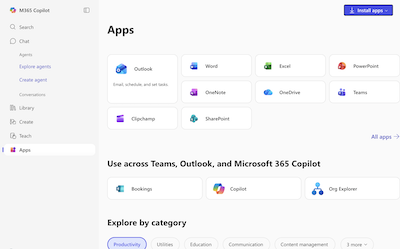
ITS highly recommends installing Microsoft Office Suite on any personal devices you use (it’s already installed on SCCC computers). This includes Outlook, OneDrive and Teams, streamlining your SCCC communications and giving you easy access to your files. Simply click the Office 365 tile in the SCCC Login Portal, then look for the Install Apps button in the top right corner of the page. It automatically detects what device you’re on to install the appropriate version. Then be sure to sign in using your SCCC email to use your Microsoft license. Note that you can download Office 365 apps on up to five personal devices. SCCC login portal and security The college continues to employ various protocols to ensure the security of SCCC’s data. While it may seem like a tedious process to create, remember and enter a longer unique password (12 characters) and to double authenticate with an app or code every time you log in, it is keeping our private information more secure. This extra level of security helps prevent cyberattacks and account thefts as well as better protecting our data. We thank you for continuing to not share your password or click suspicious links in emails. If you’ve forgotten your password, you can use the new self-service password reset feature (instructions to reset your password are in the ITS knowledgebase). Once you’ve accessed the SCCC Login Portal, you can use it as a launch pad to various other systems. As we move into a new year, know that ITS is here to support the technology needs that you and your students face. Just contact us at sunysuffolk.edu/its and keep in mind that wintersession is a great time to explore all these new technology options. |